Salesforce Scenario Playbook
22 real situations from a salesperson's day — each with the exact clicks and the exact words to type. Written for our team, where everyone works in one shared Salesforce login.
Find your scenario
Something just happened? Find it below and jump straight to the steps.
| Part 1 — Every day | ||
| 1 | Starting your day | Clear overdue items, read today's list |
| 2 | A new enquiry (lead) has arrived | Claim it with a signed task |
| 3 | Before you call any school | Read the timeline first |
| 4 | Planning future work | Make it a task now |
| 5 | Call connected | Signed comment, Mark Complete, next task |
| 6 | Call not answered | Log the attempt, move the date |
| 7 | Ending your day | Zero overdue, next steps in place |
| Part 2 — Moving deals | ||
| 8 | A school shows real interest | Convert the lead into an Opportunity |
| 9 | A demo date is fixed | Stage → Demo Scheduled, event on calendar |
| 10 | The demo is done | Stage → Demo Completed, same day |
| 11 | Proposal sent | Stage → Quotation, follow-up task |
| 12 | The school said yes | Stage → School Onboarded, payment task |
| 13 | Silent after the proposal | Log attempts, escalate after 3–4 |
| 14 | The deal is lost | Stage → Closed, record the loss reason |
| 15 | The lead is junk | Mark it Junk in ten seconds |
| Part 3 — Fixing messes | ||
| 16 | A task with no owner's name | Sign it, or raise it in stand-up |
| 17 | Clearing an overdue backlog | The 15-minute cleanup |
| 18 | Two reps on the same school | Earlier signature owns it |
| Part 4 — Stand-up | ||
| 19 | Answering as a rep | Read your four answers off the screen |
| 20 | Running it as the manager | Refresh dashboard, open three reports |
| 21 | Building the three reports | One-time setup, used forever |
| Part 5 — Google Calendar | ||
| 22 | Putting a demo on the calendar | Log it as an Event — it syncs automatically |
The three golden rules
We all work in one shared Salesforce account (“MLC Team”). Salesforce cannot tell who did what — unless you sign your work.
| Rule | What it means |
|---|---|
| 1. Sign your work | Every task subject starts with your name in capitals and a | — “NAMRATA | Call – IMS Noida – demo follow-up”. Every comment starts with REP: your name. No signature means the work belongs to nobody. |
| 2. Write it down | Every call, demo and proposal gets logged the moment it happens. If it is not in Salesforce, it did not happen. |
| 3. Close the loop | Work finished → Mark Complete → create the next task. Never leave finished work showing as Open. |
Every day
The daily rhythm: open your list, work it, log everything, close the day clean.
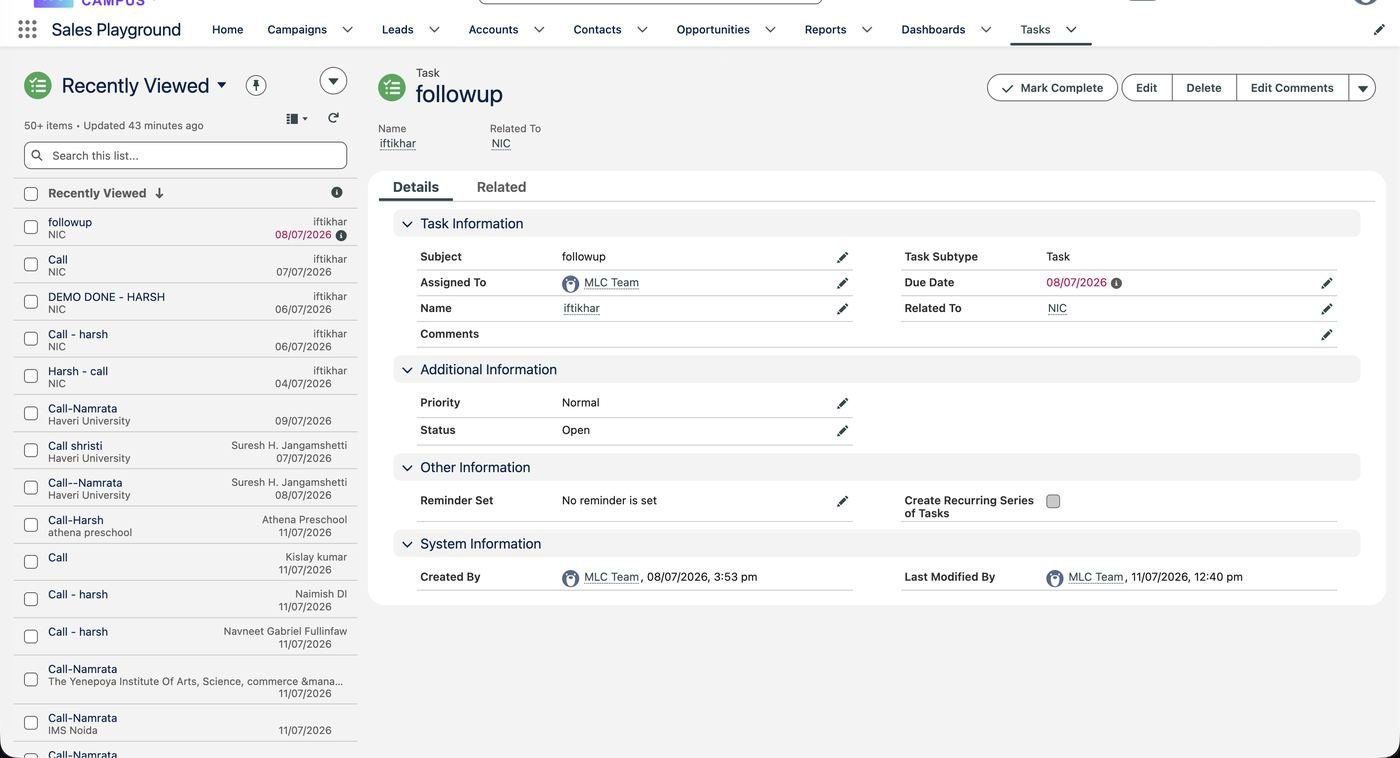
- Log in to Salesforce → click Tasks in the top bar.
- Click the ▾ next to the list name → choose Open Tasks. (Our org's views: Open Tasks, Today's Tasks, Overdue Tasks, Recently Completed Tasks.)
- Type your name in the Search this list... box — now you see only your tasks.
- Red dates are late. Handle every red one first: done in real life → Scenario 5. Still pending → move its Due Date to today or tomorrow. Dead → comment why, then Mark Complete.
- Read today's tasks top to bottom. That is your day plan.
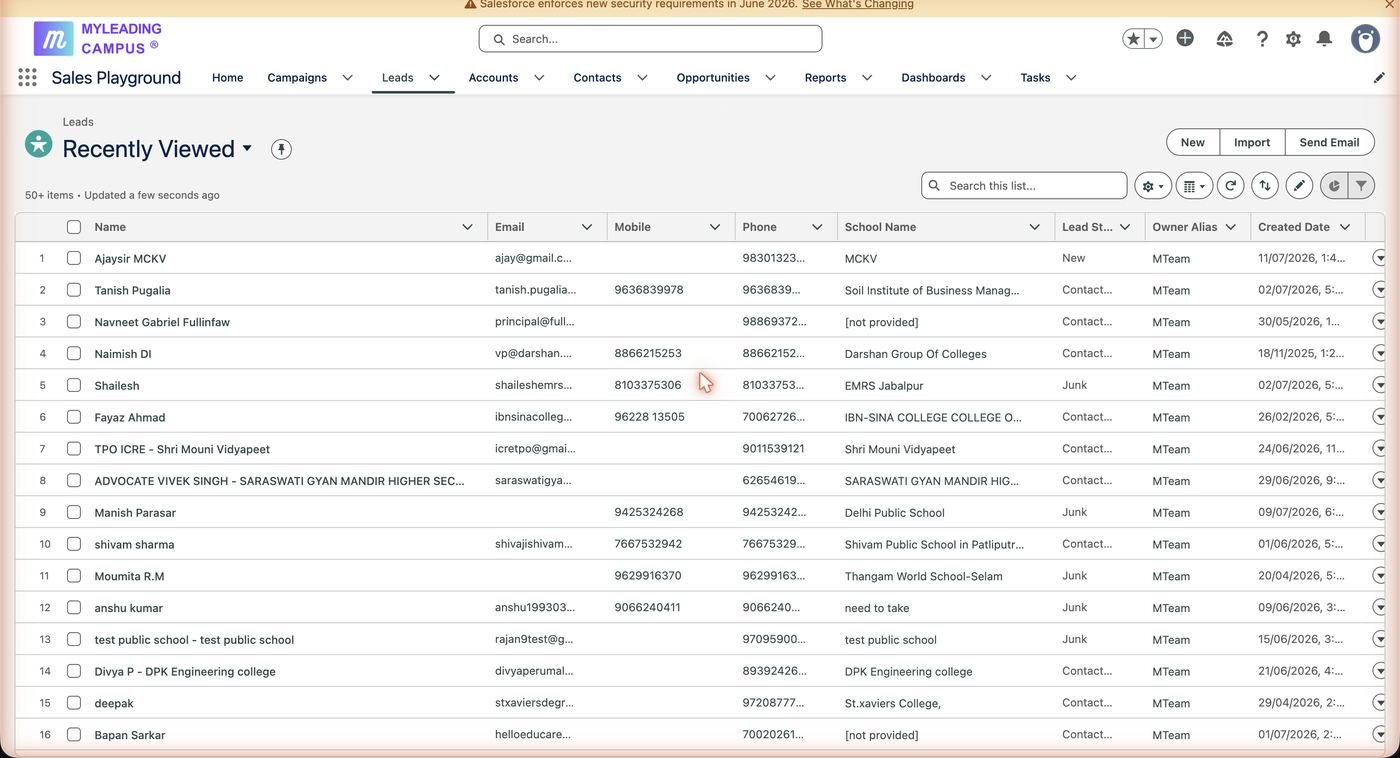
- Click Leads — the new lead shows status New.
- Open it. Check the Activities panel (right side) first. Empty — it's free, you can take it. Someone's signed tasks — it's theirs (Scenario 18).
- Taking it? Create the first task right in the Activities panel so it links automatically:
Subject:   NAMRATA | Call – Sunrise Public School – first contact
Due Date:  today
Comments:  New lead from website. 800 students (from form).
- Open the school's lead or opportunity page.
- Read the Activity timeline on the right: who called last, what was promised, which stage the deal is in.
- If the last signed activity belongs to another rep — it's their school. Don't call; ask them instead.
- Read the last OUTCOME and NEXT STEP comment, and start your call from there (“You had asked about WhatsApp integration…”), not from zero.
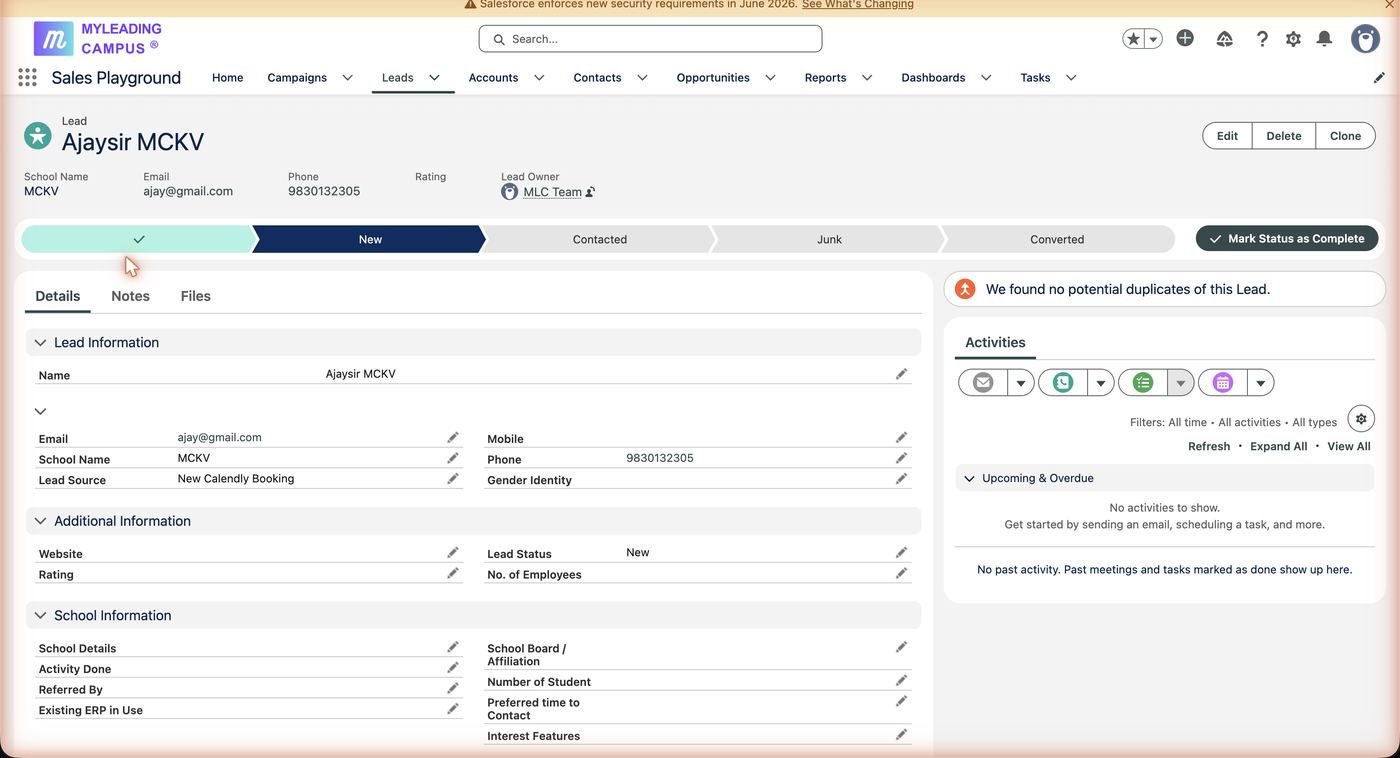
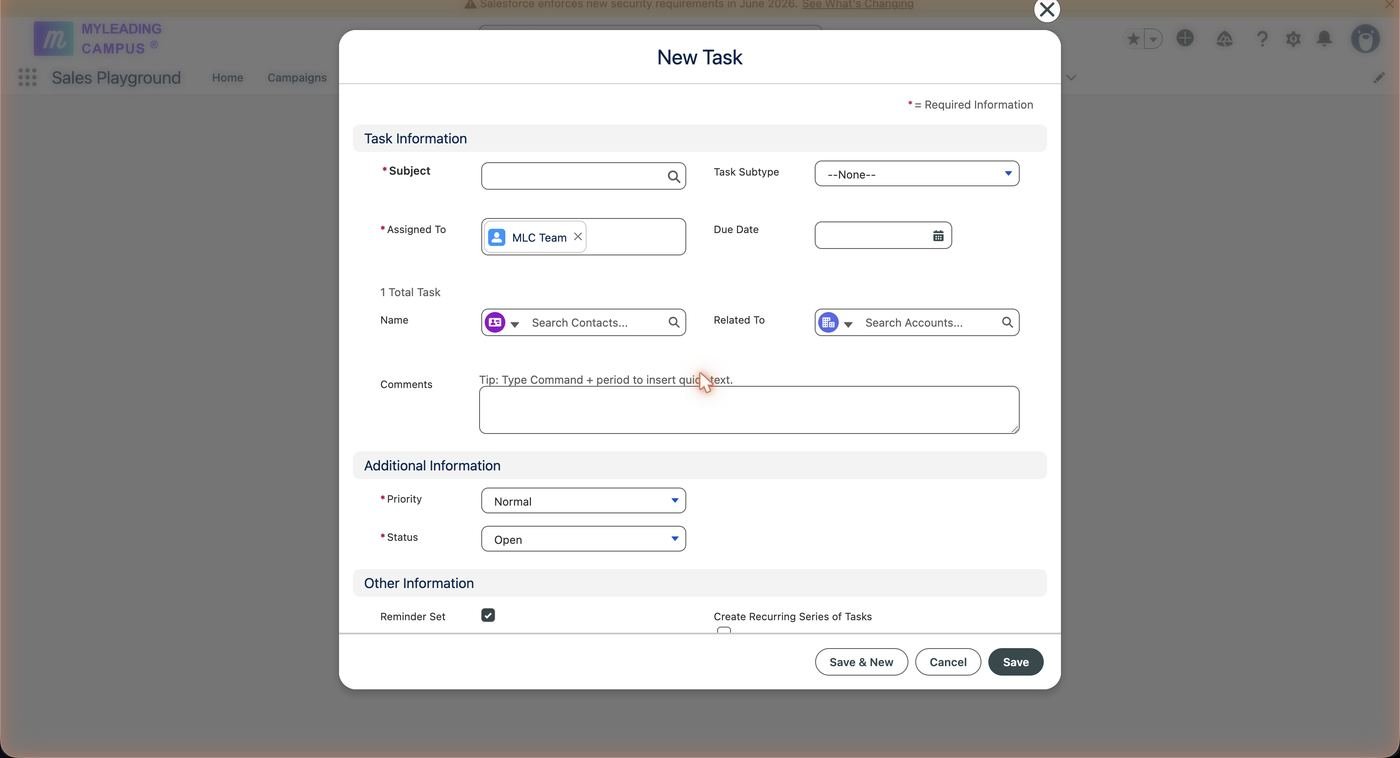
Best way: open the school's page → Activities panel → New Task (it links automatically). Otherwise: Tasks tab → New Task. Fill it in like this:
| Field | What to write | Example |
|---|---|---|
| Subject | NAME | Action – School – Purpose | NAMRATA | Call – Sunrise Public School – fee module pricing |
| Assigned To | Leave as MLC Team — your subject line is the signature | MLC Team |
| Due Date | The day you will really do it. Never blank. | 13/07/2026 |
| Name | The contact person | Mr. Rajesh Sharma (Principal) |
| Related To | The school's account or opportunity | Sunrise Public School |
| Comments | Why this task exists | Principal asked pricing for 800 students. |
- Open the task → pencil icon next to Comments → write four lines:
REP: Namrata
TALKED TO: Mr. Rajesh Sharma (Principal)
OUTCOME:  Interested in fee module. Wants demo next week. Asked about WhatsApp integration.
NEXT STEP: Demo on Tuesday 15/07, 11 am, online.
- Click Save, then Mark Complete.
- Immediately create the next task (Scenario 4): “NAMRATA | Demo – Sunrise Public School – fee module, online”, due 15/07.
- Did the deal move forward? Update the stage as well (Scenarios 9–12).
- Open the task → Comments:
REP: Namrata
TALKED TO: — (no answer, 2 attempts, 11:30 am and 4 pm)
OUTCOME:  Phone not picked. WhatsApp sent asking for a good time.
NEXT STEP: Try again tomorrow morning.
- Do not Mark Complete. Instead: pencil next to Due Date → change to tomorrow → Save.
- Tasks → Today's Tasks → search your name.
- Anything still Open that you actually did? Scenario 5 treatment — comment and complete.
- Anything you couldn't do? Move its date honestly (tomorrow, not “someday”).
- Quick check: does every school you touched today have a next signed task? If not, create it now.
Moving deals
A deal moves right only when reality moves right. This is our pipeline:
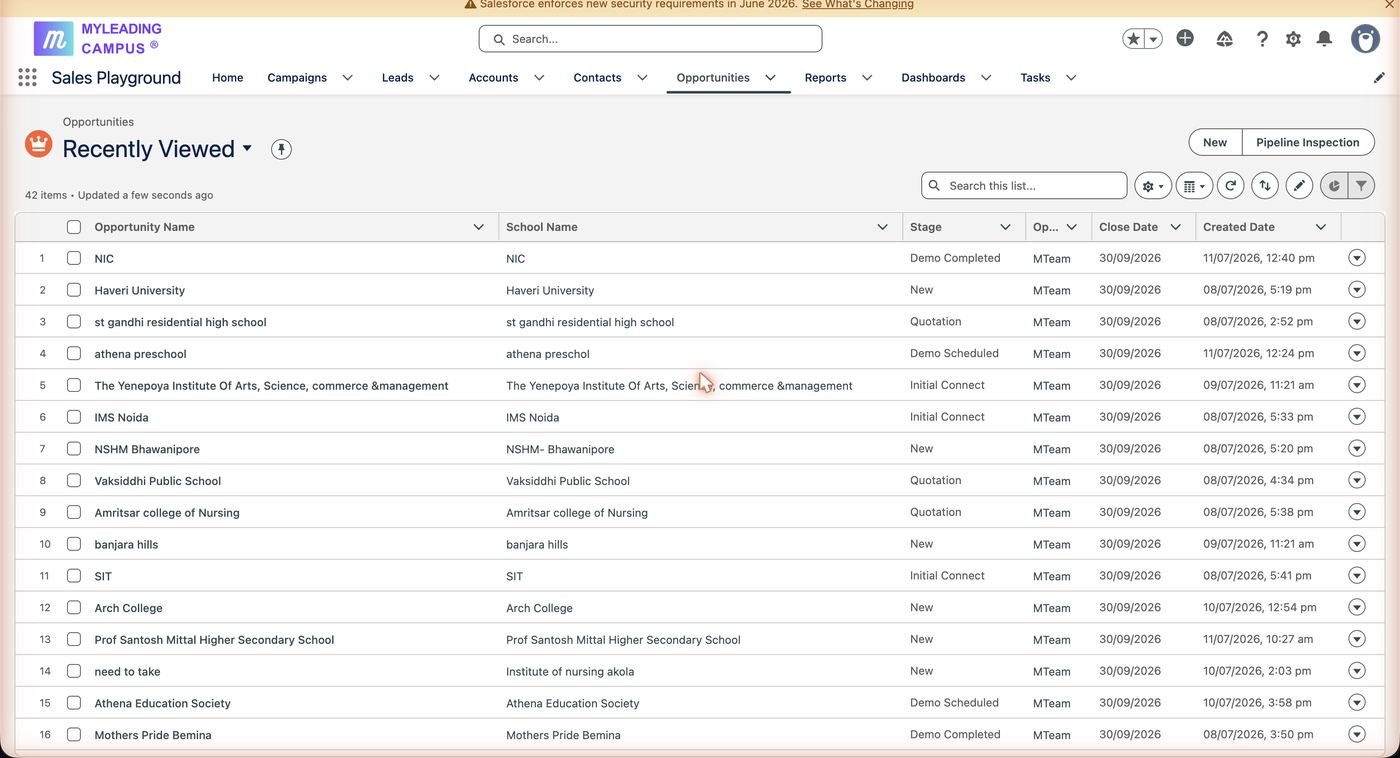
- On the lead: log the call (Scenario 5 comment style), status path → Contacted → Mark Status as Complete.
- Click Convert. Salesforce creates an Account (the school), a Contact (the person) and an Opportunity (the deal).
- Open the new opportunity and set:
Stage:       Demo Scheduled   (or Initial Connect if the demo isn't fixed yet)
Amount:      2,40,000         (yearly value — never leave 0)
Close Date:  30/09/2026       (honest estimate)
Description: REP: Namrata (since 12/07/2026)
- Demo already fixed? Put it on the calendar as an Event — Scenario 22.
- Open the opportunity → path → click Demo Scheduled → Mark Stage as Complete.
- Log the demo as an Event (not a task) with the real date and time — Scenario 22. It lands on the team's Google Calendar automatically.
- Open the demo event (or task) → write the outcome in its description or comment:
REP: Namrata
TALKED TO: Principal + accountant (40 min, online)
OUTCOME:  Demo went well. They want a quote for 800 students incl. WhatsApp module.
NEXT STEP: Send proposal by tomorrow evening.
- If it was a task: Mark Complete.
- Opportunity path → Demo Completed → Mark Stage as Complete.
- Create the task: “NAMRATA | Proposal – Sunrise Public School – quote 800 students”, due tomorrow.
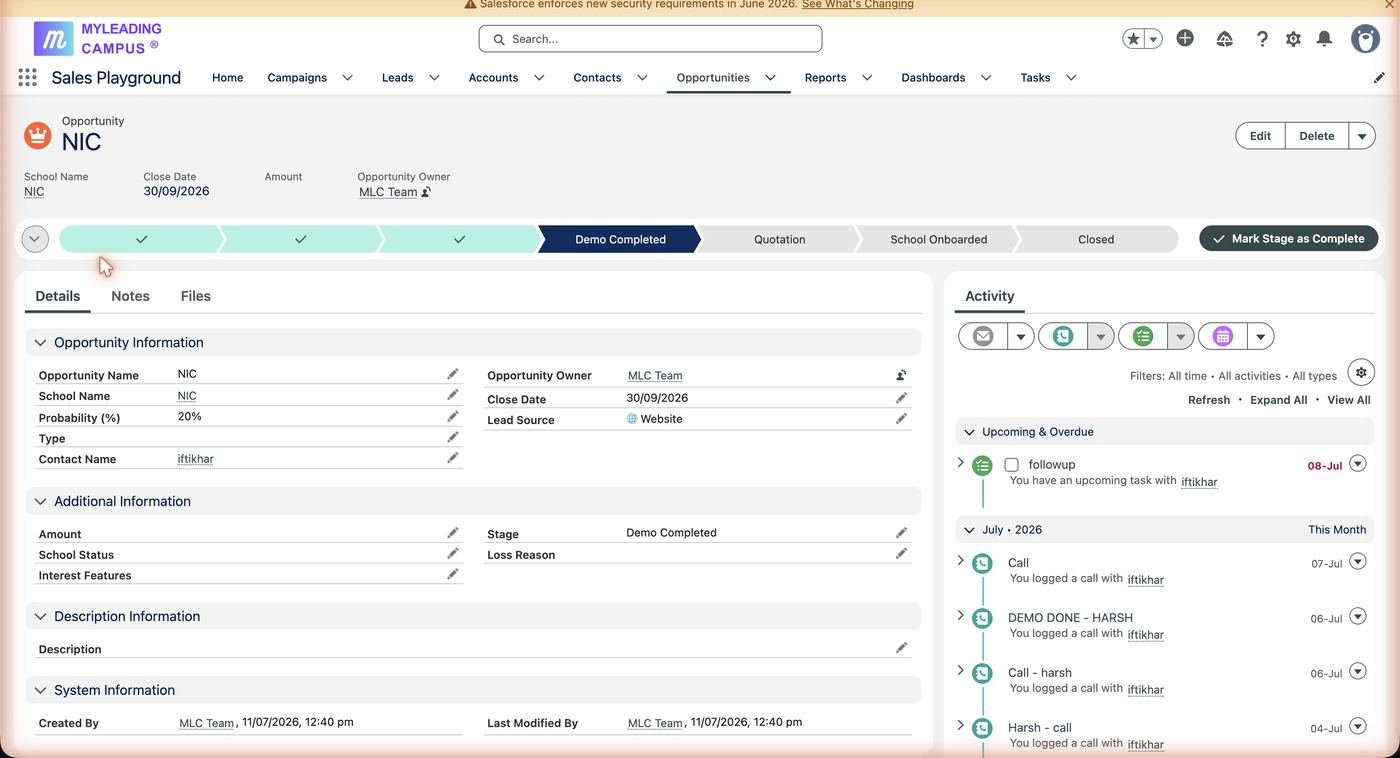
- Open the proposal task → comment, with the numbers:
REP: Namrata
OUTCOME:  Quote emailed: ₹2.4L/yr, 800 students, fee + WhatsApp modules. CC'd manager.
NEXT STEP: Follow up Monday for feedback.
- Mark Complete → stage → Quotation → Mark Stage as Complete.
- Update Amount on the opportunity if the quote changed it.
- Create the task: “NAMRATA | Follow-up – Sunrise Public School – proposal feedback”, due in 2–3 days.
- Log the winning call (Scenario 5) → Mark Complete.
- Stage → School Onboarded → Mark Stage as Complete. This is what “deal closed” means in stand-up.
- Check that Amount and Close Date hold the final real numbers.
- Create the task: “NAMRATA | Payment – Sunrise Public School – collect advance + agreement”, due this week.
- Say it loudly in tomorrow's stand-up.
- The deal stays in Quotation — don't touch the stage.
- Keep one follow-up task alive. Each attempt: add a line to its comments (“3rd attempt 16/07 — no answer, WhatsApp sent”) and move the due date forward. The comment history becomes proof of your effort.
- After 3–4 failed attempts: raise it in stand-up as a blocker — “waiting for customer response”. The manager decides: keep chasing or close it.
- Stage → Closed → Mark Stage as Complete.
- Fill Loss Reason honestly: too costly / chose competitor / no budget / went silent.
- Final comment on the opportunity: “REP: Namrata. Lost to [X] because [Y]. Reconnect possible in [month].”
- Close any open tasks on it (with a comment saying why). Then move on — no zombie deals.
- On the lead: status path → Junk → Mark Status as Complete.
- One-line comment: “REP: Harsh. Wrong number — it's a shop.” Ten seconds that save the next person an hour.
Fixing messes
Things go wrong. Here is how to put them right — fast.
- Yours? Edit → add “YOURNAME | ” at the front, plus the school and purpose.
- Not yours or unknown? Raise it in stand-up: whose is this? Every task gets an owner, or gets closed.
Fifteen minutes, three questions per task, no mercy:
- Did it actually happen? Write the real outcome in comments → Mark Complete.
- Still needs doing? Move the due date to a real day this week.
- Dead? Comment why (“school closed the topic”) → Mark Complete.
- The rep with the earlier signed activity owns the school. The other stops immediately.
- Not sure, or both old? Decide in stand-up in thirty seconds; the hand-over is written as a comment.
- Prevention is Scenario 3: always read the timeline before dialing.
Stand-up
Ten minutes every morning. Four questions. Every answer comes off a screen, not from memory.
| Question | Where your answer is |
|---|---|
| 1. What did you complete yesterday? | Tasks → Recently Completed Tasks → search your name. Calls = completed call tasks; demos = completed demo events; proposals = your deals that entered Quotation; closed = deals that entered School Onboarded. |
| 2. What are you doing today? | Tasks → Today's Tasks → search your name. Read it out. |
| 3. Any blockers? | Tasks → Overdue Tasks → search your name — the comments say why: waiting for customer, pricing approval, technical clarification, payment pending. |
| 4. Next committed outcome? | The next signed task you created (Scenario 5, step 3). Say it: “Demo with XYZ School Tuesday — the task is in.” |
- Dashboards → Sales Dashboard → Refresh. A two-week-old dashboard lies.
- Open the three stand-up reports (Scenario 21) in three tabs.
- Go person by person — each rep's name-block is visible in every report, because signed subjects sort alphabetically.
- Closing rule: every rep's “next committed outcome” must exist as a signed task before the meeting ends. Not a task — not a commitment.
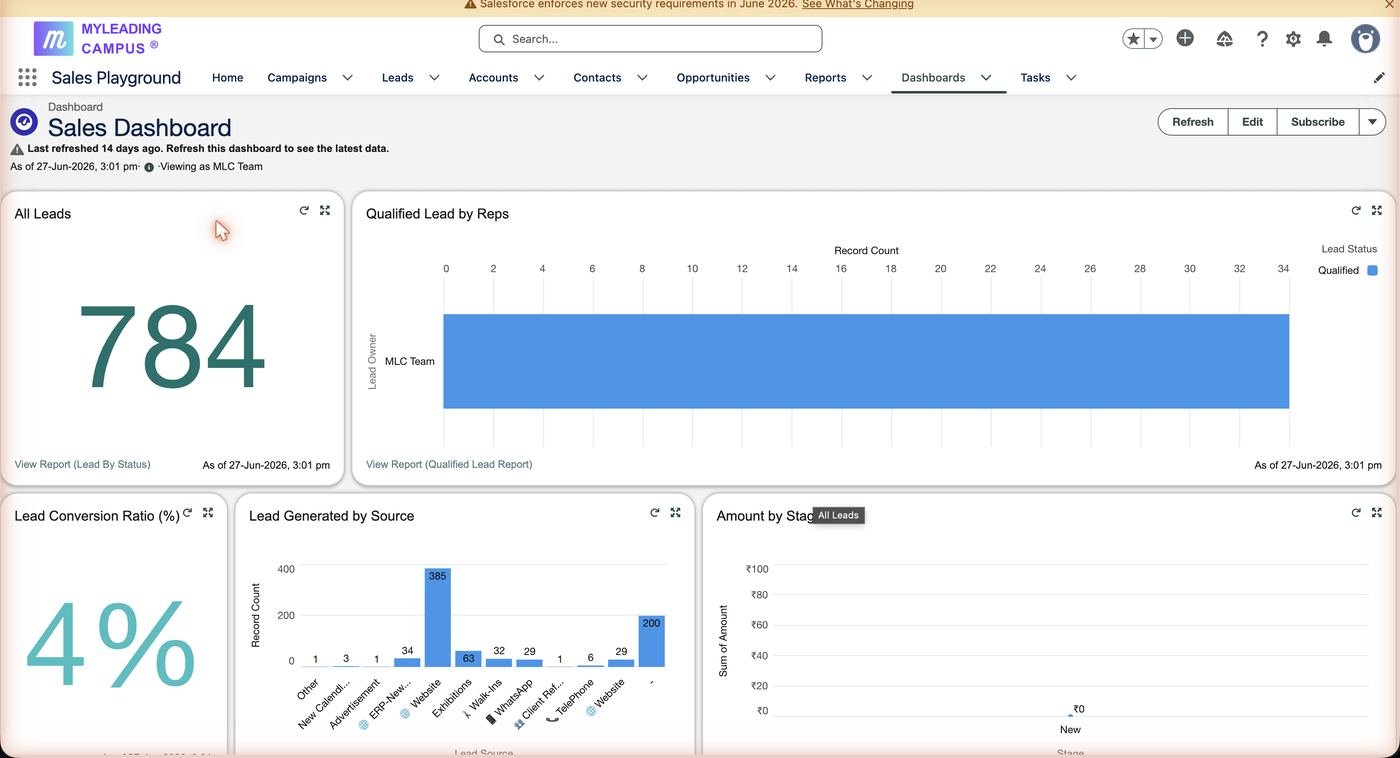
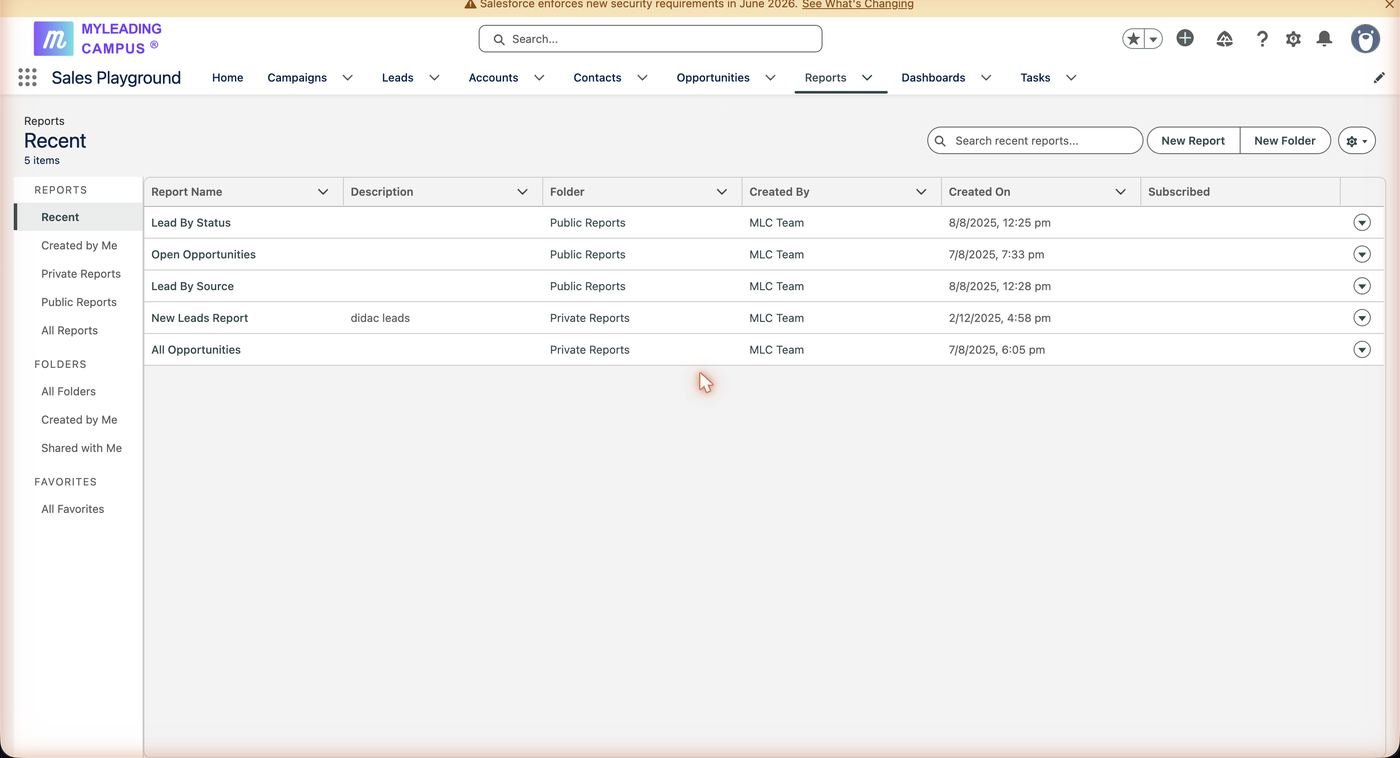
- Reports → New Report → search “Tasks” → choose Tasks and Events → Start Report.
- Filters: Show Me = All Activities; Date = Completed Date – Yesterday; add Status equals Completed.
- Columns: Subject, Related To, Comments. Sort by Subject — the name signatures group each rep's work automatically.
- Save & Run → name it “Stand-up 1 — Completed Yesterday” → save in Public Reports.
- Repeat twice with different filters:
| Report | Filters | Answers |
|---|---|---|
| Stand-up 1 — Completed Yesterday | Status = Completed, Completed Date = Yesterday | “What did you complete yesterday?” |
| Stand-up 2 — Due Today | Status = Open, Due Date = Today | “What are you doing today?” |
| Stand-up 3 — Overdue (Blockers) | Status = Open, Due Date < Today | “Any blockers?” |
To isolate one person, add the filter “Subject contains NAMRATA” — or simply use the search box on any task list view.
Google Calendar
Salesforce is connected to the team's Google Calendar (Einstein Activity Capture, since July 2026). One rule: Events sync to Google Calendar — Tasks never do. Fixed date and time (demo, meeting) = Event. To-do work (calls to attempt, proposals to send) = Task. Changes sync both ways.
- Open the school's opportunity (or lead) → Activity panel on the right.
- Click the calendar icon (New Event) — next to the email, call and task icons.
- Fill it in — signed, like everything else:
Subject:     NAMRATA | Demo – Sunrise Public School – fee module
Start:       15/07/2026, 11:00 am
End:         15/07/2026, 11:45 am
Description: Principal + accountant attending. Google Meet link: [paste].
REP: Namrata- Save. Within a few minutes the event appears in the team's Google Calendar — visible on every rep's phone that subscribes to it.
- Time changed? Move it in either place — Salesforce or Google Calendar — and the other side updates automatically.
- After the demo, continue with Scenario 10 (stage → Demo Completed, outcome in the event's description).
Cheat sheet
The two templates the whole system runs on. Copy, replace the brackets, done.
Task subject (replace NAME with your name in capitals)
NAME | Call – [School] – [purpose]
NAME | Demo – [School] – [module], [online/at school]
NAME | Proposal – [School] – [what you are quoting]
NAME | Follow-up – [School] – [what you are chasing]
NAME | Payment – [School] – [what to collect]
After-call comment
REP: [your name]
TALKED TO: [name + role]
OUTCOME:  [what they said, 1–2 lines]
NEXT STEP: [what happens next + when]